
What is the purpose of this tutorial?
This guide will walk you through how to set your notification preferences. We recommend that one of the first steps you take in the ParentSquare platform is to set up your notification preferences.
ParentSquare allows users to customize their notifications by notification type and select their preferred delivery method for each school and district.
You can set the frequency of notifications for posts. The Instant setting will send all post notifications in real time. The Digest setting sends direct messages, alerts, and time-sensitive posts instantly, but sends all non-time-sensitive posts at the end of the day, reducing the number of notifications you receive daily. Note: we recommend the Digest setting.
Notification types include:
- Urgent Smart Alerts & Notices - urgent alerts, attendance notices, and auto notices marked as critical notices (cannot be disabled).
- General Announcements & Messages - posts, direct messages and reminders.
- School Alerts - smart alerts and other student notices.
Under General Announcements, you can select which mode(s) will receive notifications, and for posts, how often you want to receive them. Choose Text, Email and/or App Notifications. Then, choose Instant or Digest for post notifications.
- Off: no notifications about posts will be sent to you. Urgent Alerts and Notices will still be sent. School Alerts will still be sent if turned on.
- Instant: you'll receive an email and/or text and/or an app notification every time a notice or message is sent.
- Digest: you'll receive an email and/or text and/or an app notification once a day in the evening with all posts from that day.
Update your notification Settings (using web browser)
Step 1: Login to your ParentSquare account
Go to https://parentsquare.com/signin and sign in to your account with your email address and password.
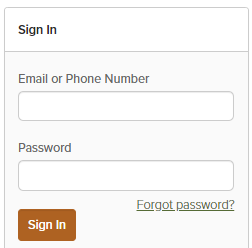
If you have not made an account yet, please enter the email address or phone number listed in your contact record in your student’s Parent Portal account.

Step 2: Navigate to My Account
Click Your Name > My Account in the top right of the window.

Step 3: Locate the Notification Settings
Click on Notification Settings from the menu on the left.
Step 4: Choose Your Notification Settings
Choose your preferred Notification Settings for Posts (Off, Instant or Digest for Email and Mobile), Direct Messages (Email, Text or None) and School Alerts & Notices (On or Off). Once you've made selections, future messaging will send based on your preferences.
Instant: This setting will send you notifications as posts, etc. are created.
Digest: This allows you to turn down the noise and receive a notification at the end of the day with links and information related to all of the content shared that day.
School Alerts: Disabling this will turn off all notifications from Irvine Unified School District via the ParentSquare platform, except emergency alerts.
Emergency Alerts: Emergency alerts cannot be disabled.
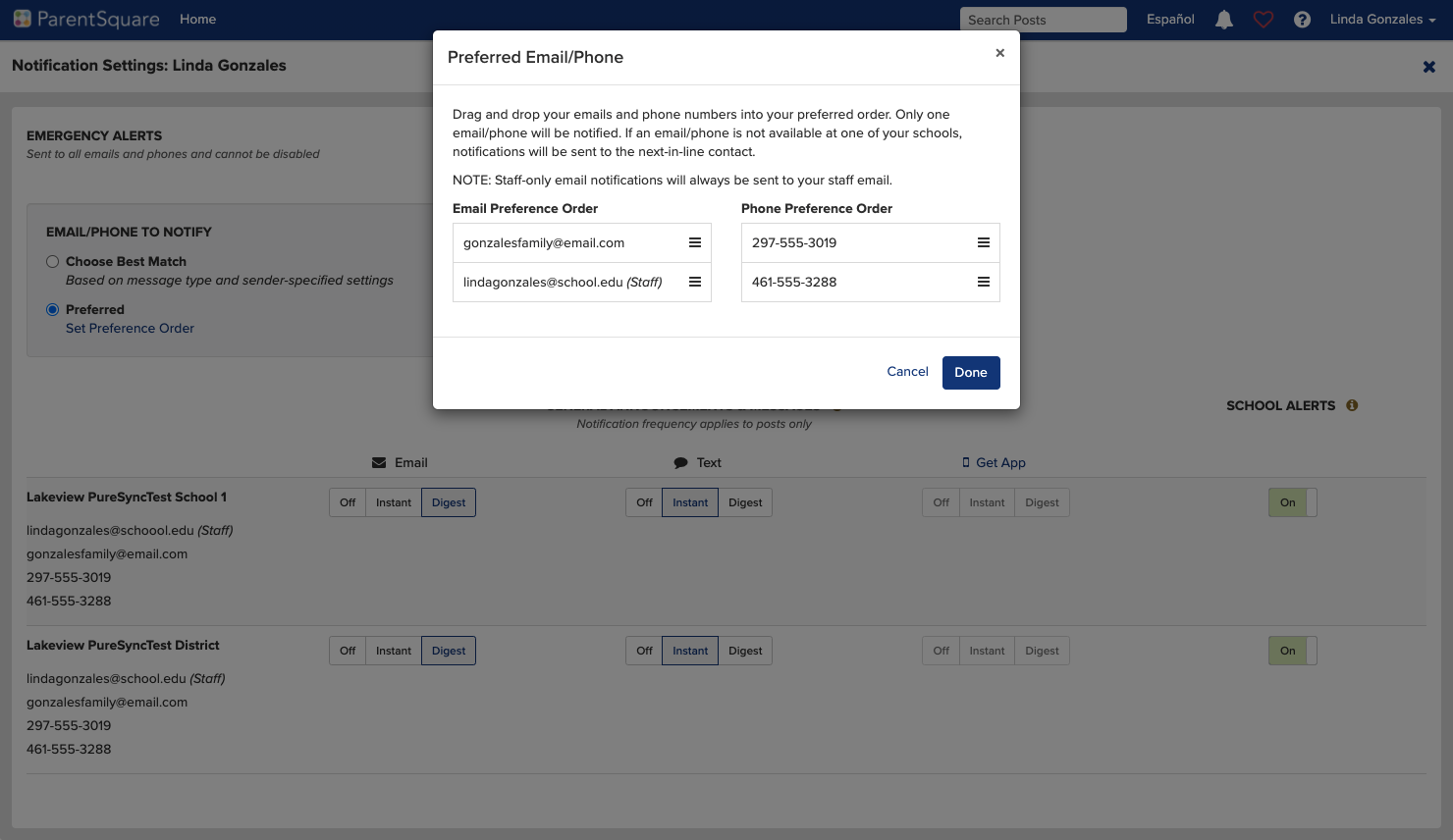
Step 5: Set Order of Preferred Contacts
If you have multiple emails or phones listed on your account, set the order of your preferred contacts to receive notifications. Notifications will only be sent to one email and one phone on your account.
Update your notification Settings (using mobile app)
Step 1: Navigate to the Notifications Tab
From home screen tap the triple bar menu at top left. Select Account and then Notifications.
Step 2: Select how you want to be notified
- Turn OFF Custom Settings to use the same notification settings for all schools.
- Turn ON Custom Settings to set different notifications at each school.
Toggle on/off to receive Email, Text and/or App Notifications.
Note: In order to receive app notifications on your phone, be sure they are enabled in your phone settings.
This document was created for Irvine Unified School District by the Information Technology Department.
For technical assistance, please email helpdesk@iusd.org
Comments
0 comments
Please sign in to leave a comment.